Stores

For Your Search

How to view the Lease Agreement

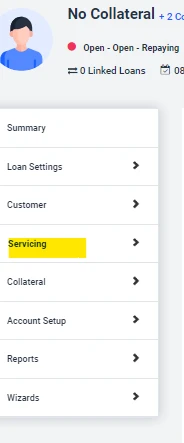
Step 1 – Locate customer’s account in Loan Pro

Step 2 – Select Servicing

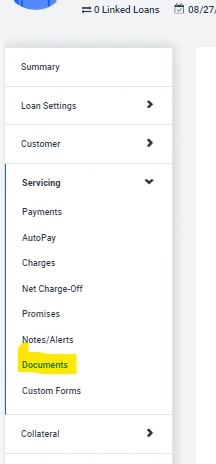
Step 3 – Select Documents

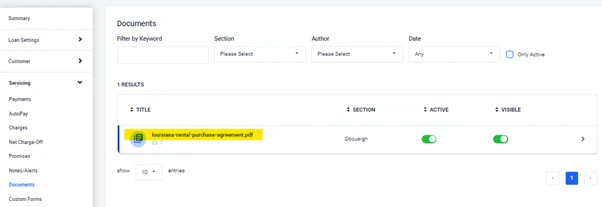
Step 4 – Click on the document below “Title”

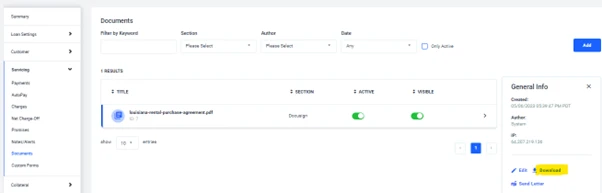
Step 5 – Click Download

Step 6 – Open downloaded attachment to view lease


If you’re experiencing issues accessing your approved lease amount, please contact Tire Agent directly at 833-847-3463. You can also reach out to us at 855-447-4921. Additionally, please share any screenshots of the issue to assist us in resolving it promptly.


Customer Initiated Cancellations: In the event a customer contacts you directly requesting a cancellation of their lease agreement, kindly advise them to reach out to Tire Agent for further assistance. As per our policy, we are unable to process lease cancellations unless instructed by the Tire Agent.

Communication with Tire Agent: Customers should be encouraged to request an email from the Tire Agent explicitly stating the cancellation request. This email should then be forwarded to us for processing. Alternatively, the Tire Agent can copy us on the email when communicating with the customer directly.

We do not escalate cancelation request to Antonio unless we are contacted by Tire Agent.

When contacted by Tire Agent always confirm the Name of the representative you are speaking with.


A reversal should only be done for Ghost payments any other reversal should be escalated to the CX Manager Queue


Step 1 – Accessing Payment Screen

Begin by navigating to the payment screen in Loan Pro.


Step 2 – Locating Reversal Option

On the payment screen, look for the payment you want to reverse and click the arrow pointing left, typically located on the right side of the screen.


Step 3 – Initiating Reversal Process

Click on the left-pointing arrow to initiate the reversal process.


Step 4 – Providing Reversal Details

In the pop-up window, select “Clerical Error” as the reversal reason.

In the reversal comments section, type “Clerical Error.”


Step 5 – Configuring Reversal Options

Ensure that “Reversal Charge Fee” and “Reversal Merchant Transaction” are both set to “No.”

Note that these options should always be set to “No” by default.


Step 6 – Initiating Reversal

Finally, click on “Reverse Payment” to complete the reversal process.


Step 7 – Double-Check Reversal

Verify the payment history to confirm that the ghost payment has been accurately reversed it should be highlighted in a peach color and the status should be “Reversed”.


 Note: Agents can only reverse Ghost Payments. If a payment was successfully processed that needs to be reversed it should be escalated to the CX Manager Queue

Introduction

Why Reverse Late Fee?

Reversing late fees is necessary in cases where exceptions or courtesies are extended to customers for specific reasons.


Step 1 – Populating the Account

Begin by populating the customer’s account with relevant information in Loan Pro.


Step 2 – Navigating to Servicing Tab

Go to the “Servicing” tab to access charges and payment details.


Step 3 – Selecting Charges

Under the “Servicing” tab, select “Charges” to view the list of charges associated with the account.


Step 4 – Reversing Late Fee

Identify the late fee payment you want to reverse.

Click on the blue arrow to the right of the screen next to the late fee payment.


Step 5 – Comment for Reversal

In the pop-up box, type a comment explaining the reason for the reversal (e.g., “1-time courtesy”).

Provide a brief and clear explanation.


Step 6 – Initiating Reversal

Click on “Reverse Charges” to save the changes and initiate the reversal process.


Step 7 – Double-Check Reversal

Review the charges section to ensure that the late fee reversal is accurately reflected.

Check if the customer has attempted payment through Tire Agent initially. OLI prefers to avoid covering the costs of multiple returns, only proceeding if necessary. 


Returning Within 30 Days: If you find yourself within the 30-day return window, you have two options:

  • Contact Tire Agent:
  • Advise the customer to call Tire Agent using the number provided for quick assistance.
  • Alternatively, provide the customer with a return link for a convenient online return process.
  • Free Shipping Option:
  • If the customer prefers not to pay for shipping, instruct them to send clear pictures of the tires to the support email.
  • The tires must meet specific conditions:
  • Unmounted from the car.
  • Unused and in perfect condition
  • Pictures showing stickers still on items.
  • Rims still in the box
  • Pictures of all items in unused condition


Example Template: Subject: Assistance with Tire Return

Hello [Customer’s Name],

We appreciate your interest in returning merchandise. Before we proceed, could you confirm the following:

  • Are the stickers still on the merchandise?
  • Have they been mounted?


Please reply to this email with clear pictures of the tires unmounted, stickers still on them, and pictures showing the size, brand, and tread. Additionally, include pictures of tire pressure monitors and all related items.

Thank you for your cooperation.

Best regards,

Own.Lease


Return Link Email: Subject: Tire Agent Return Form

Hello Valued Customer,

To streamline your return process, we kindly ask you to complete the return form. If you have any questions or need further assistance, feel free to contact our Tire Agent.

Access the return form here: https://www.tireagent.com/returns

Thank you for choosing Tire Agent.

Best regards,

Own.Lease

FAQs

For Your Search

View Lease Agreement

How to view the Lease Agreement Step 1 – Locate customer’s account in Loan Pro Step 2 – Select Servicing

View Article

Was approved and unable to use approval

If you’re experiencing issues accessing your approved lease amount, please contact Tire Agent directly at 833-847-3463. You can also reach

View Article

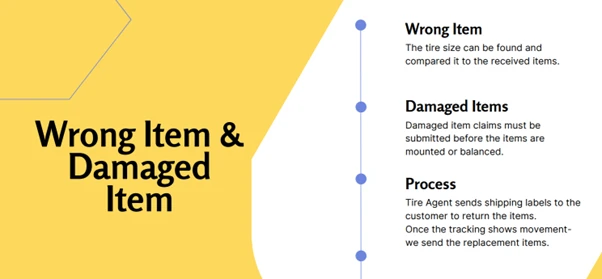
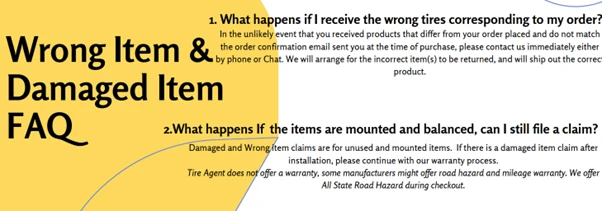
Tire Agent Wrong&Damaged Tires


View Article

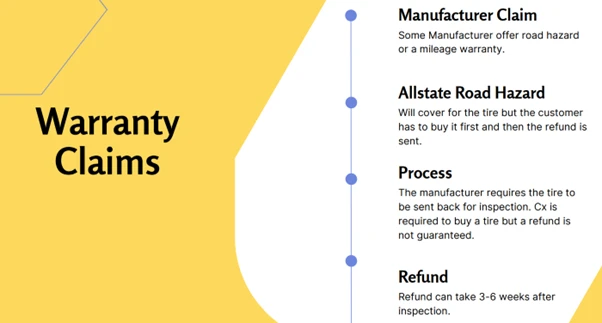
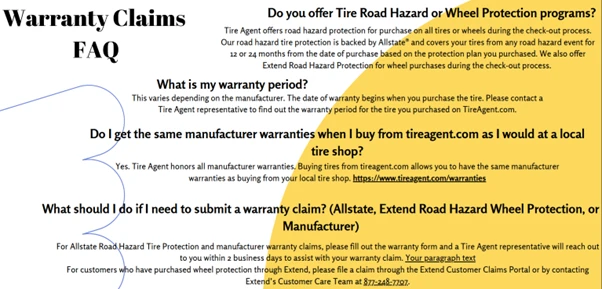
Tire Agent Warranty Claims

View Article

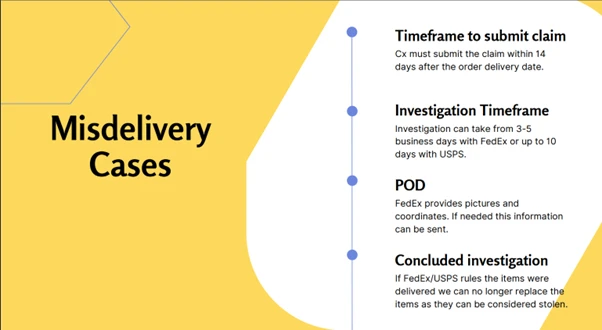
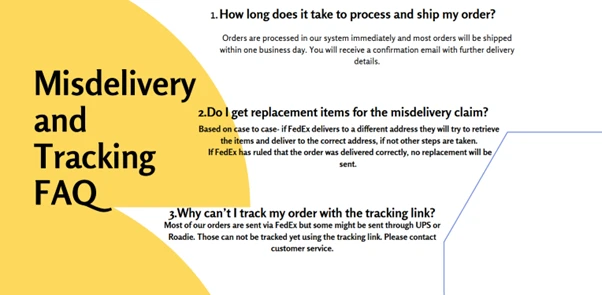
Tire Agent Misdelivery

View Article

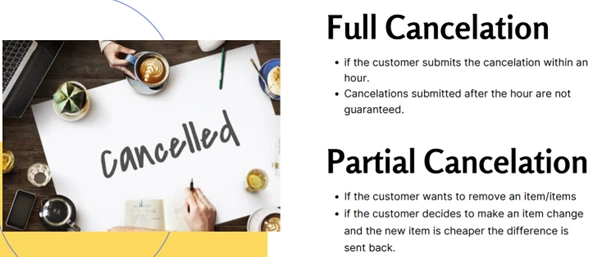
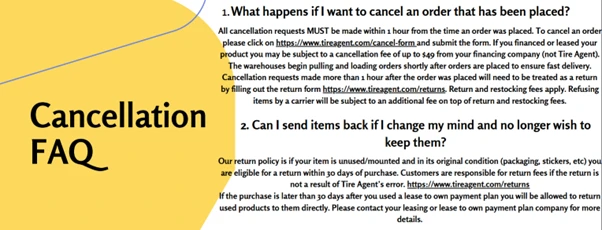
Tire Agent Cancellation

Customer Initiated Cancellations: In the event a customer contacts you directly requesting a cancellation of their lease agreement, kindly advise

View Article

Saves Requirements

View Article

Reversing Ghost Payment in Loan Pro

A reversal should only be done for Ghost payments any other reversal should be escalated to the CX Manager Queue

View Article

Reverse Late Fee

Introduction Why Reverse Late Fee? Reversing late fees is necessary in cases where exceptions or courtesies are extended to customers

View Article

Return Tires

Check if the customer has attempted payment through Tire Agent initially. OLI prefers to avoid covering the costs of multiple

View Article

Scroll to Top