

Stores
For Your Search


Customer Initiated Cancellations: In the event a customer contacts you directly requesting a cancellation of their lease agreement, kindly advise them to reach out to Tire Agent for further assistance. As per our policy, we are unable to process lease cancellations unless instructed by the Tire Agent.
Communication with Tire Agent: Customers should be encouraged to request an email from the Tire Agent explicitly stating the cancellation request. This email should then be forwarded to us for processing. Alternatively, the Tire Agent can copy us on the email when communicating with the customer directly.
We do not escalate cancelation request to Antonio unless we are contacted by Tire Agent.
When contacted by Tire Agent always confirm the Name of the representative you are speaking with.
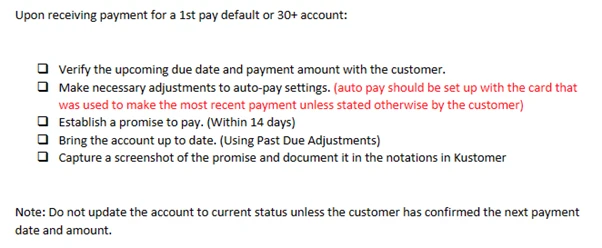

A reversal should only be done for Ghost payments any other reversal should be escalated to the CX Manager Queue
Step 1 – Accessing Payment Screen
Begin by navigating to the payment screen in Loan Pro.
Step 2 – Locating Reversal Option
On the payment screen, look for the payment you want to reverse and click the arrow pointing left, typically located on the right side of the screen.
Step 3 – Initiating Reversal Process
Click on the left-pointing arrow to initiate the reversal process.
Step 4 – Providing Reversal Details
In the pop-up window, select “Clerical Error” as the reversal reason.
In the reversal comments section, type “Clerical Error.”
Step 5 – Configuring Reversal Options
Ensure that “Reversal Charge Fee” and “Reversal Merchant Transaction” are both set to “No.”
Note that these options should always be set to “No” by default.
Step 6 – Initiating Reversal
Finally, click on “Reverse Payment” to complete the reversal process.
Step 7 – Double-Check Reversal
Verify the payment history to confirm that the ghost payment has been accurately reversed it should be highlighted in a peach color and the status should be “Reversed”.
Note: Agents can only reverse Ghost Payments. If a payment was successfully processed that needs to be reversed it should be escalated to the CX Manager Queue
Introduction
Why Reverse Late Fee?
Reversing late fees is necessary in cases where exceptions or courtesies are extended to customers for specific reasons.
Step 1 – Populating the Account
Begin by populating the customer’s account with relevant information in Loan Pro.
Step 2 – Navigating to Servicing Tab
Go to the “Servicing” tab to access charges and payment details.
Step 3 – Selecting Charges
Under the “Servicing” tab, select “Charges” to view the list of charges associated with the account.
Step 4 – Reversing Late Fee
Identify the late fee payment you want to reverse.
Click on the blue arrow to the right of the screen next to the late fee payment.
Step 5 – Comment for Reversal
In the pop-up box, type a comment explaining the reason for the reversal (e.g., “1-time courtesy”).
Provide a brief and clear explanation.
Step 6 – Initiating Reversal
Click on “Reverse Charges” to save the changes and initiate the reversal process.
Step 7 – Double-Check Reversal
Review the charges section to ensure that the late fee reversal is accurately reflected.
Check if the customer has attempted payment through Tire Agent initially. OLI prefers to avoid covering the costs of multiple returns, only proceeding if necessary.
Returning Within 30 Days: If you find yourself within the 30-day return window, you have two options:
- Contact Tire Agent:
- Advise the customer to call Tire Agent using the number provided for quick assistance.
- Alternatively, provide the customer with a return link for a convenient online return process.
- Free Shipping Option:
- If the customer prefers not to pay for shipping, instruct them to send clear pictures of the tires to the support email.
- The tires must meet specific conditions:
- Unmounted from the car.
- Unused and in perfect condition
- Pictures showing stickers still on items.
- Rims still in the box
- Pictures of all items in unused condition
Example Template: Subject: Assistance with Tire Return
Hello [Customer’s Name],
We appreciate your interest in returning merchandise. Before we proceed, could you confirm the following:
- Are the stickers still on the merchandise?
- Have they been mounted?
Please reply to this email with clear pictures of the tires unmounted, stickers still on them, and pictures showing the size, brand, and tread. Additionally, include pictures of tire pressure monitors and all related items.
Thank you for your cooperation.
Best regards,
Own.Lease
Return Link Email: Subject: Tire Agent Return Form
Hello Valued Customer,
To streamline your return process, we kindly ask you to complete the return form. If you have any questions or need further assistance, feel free to contact our Tire Agent.
Access the return form here: https://www.tireagent.com/returns
Thank you for choosing Tire Agent.
Best regards,
Own.Lease
Introduction
Why Remove a Card?
Occasionally, you may need to remove a customer’s payment card for account management purposes. This should only be done if a customer requests the card to be removed and provides a new card to replace the existing one. The new card should be used to set up Auto Pay on the account.
Step 1 – Accessing Customer Information
Select the customer’s and navigate to the “Customer” section on the left side of the dashboard.
Select the customer’s name.
Step 2 – Selecting Payment Profiles
Within the customer details, click on “Payment Profiles.”
Step 3 – Locating the Card
To the right of the card number, look for the three dots icon.
Step 4 – Setting as Inactive
Click on the three dots icon and select “Set as Inactive.”
This action disables the card for future transactions.
Step 5 – Setting as Invisible
Once the card is inactive, click again on the three dots and select “Set as Invisible.”
This step hides the card from the payment profiles list.
Step 6 – Confirmation
Informing the customer about the card removal for transparency.
Advise the customer to visit the online portal to confirm the card is no longer active or visible to the customer.
Step 7 – Add new Payment Profile
Ensure to add a new Payment Profile is added and set it for Auto Pay
To remove a card from your account, please contact us via chat, email, or text with the last four digits of the card you wish to remove. If you do not have another card on file, please log in and add a new card before requesting the removal.
When processing payments in the LP Queue, please ensure the following requirements are met:
- Collect Due Amount:
- Attempt to collect the Due amount first.
- If the Due amount is not available, attempt to collect the Next Forecast amount.
- If both attempts are unsuccessful, move on to the next customer.
- Multiple Cards on File:
- If there are multiple cards on file, attempt to collect the payment from each card.
- If the payment is not successful on the first card, try the subsequent cards.
- Escalate Partial Payment on 20+ Day Accounts:
- If a partial payment is collected on a 20+ day account, escalate the issue to Antonio.
- Current Account with Zero Days Past Due:
- If the account is current with Zero days past due, do not attempt to collect payment.
- Adjust Auto Pay Date:
- Once a payment is successfully collected, adjust the Auto Pay date accordingly.
- If the customer has multiple “failed” Auto Pays. Delete the failed ones.
- If the account has more than 1 “Pending” Auto Pay then delete the extra(s) and leave 1 and edit it accordingly.
- Update Card for Auto Pay:
- Update the card from which the payment was collected successfully for Auto Pay going forward.
- Respect “Do Not Run” Promise to Pay or Alert:
- If there is a Promise to Pay or Alert on the account that says, “Do not run,” do not process the payment.
- If the promise has failed delete it.
Please ensure that you adhere to these guidelines while processing payments in the LP Queue as they are crucial for maintaining efficient and compliant payment processing.
When running cards. Be sure the card that should be primary is selected. If a card runs the payment. That card should be the autopay card. Change to profile to correct card to prevent failed attempts the following week.
Introduction
Frequency changes accommodate customers’ preferences for adjusting payment cycles.
Why Frequency Change?
Frequency changes allow flexibility for customers in aligning their payment schedules with their financial preferences.
Step 1 – Confirming New Due Date and Payment Cycle
Begin by confirming the new due date and the payment cycle the customer desires.
Step 2 – Calculating Payments Due
Calculate the total amount of payments due leading up to the new date.
Step 3 – Processing Payment
Process a payment for the calculated amount to ensure the account is up-to-date.
Step 4 – Changing Due Date
Change the customer’s due date to match the new due date requested.
Step 5 – Managing Auto Pay
Delete all failed and pending auto-pay transactions to avoid any issues.
Schedule a new auto-pay to match the customer’s preferred frequency and due date.
Step 6 – Escalation to CX Manager Queue
Escalate the frequency change request to the CX Manager queue for further review and approval.
Note: Frequency change is not finalized until it is reviewed by the Back Office Team
FAQs
For Your Search
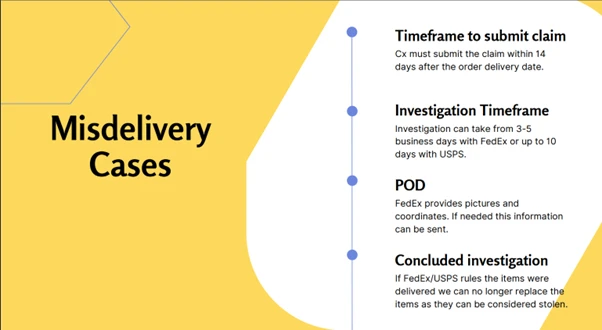
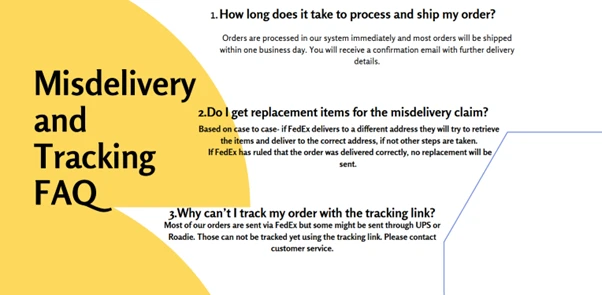
Tire Agent Misdelivery
View Article
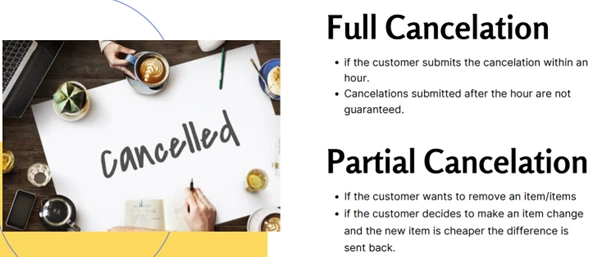
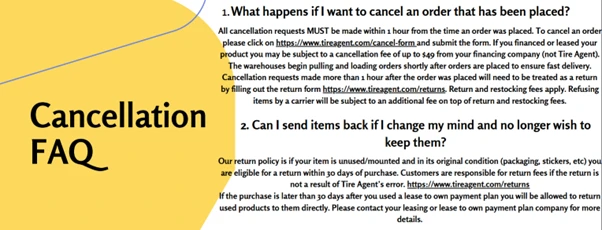
Tire Agent Cancellation
Customer Initiated Cancellations: In the event a customer contacts you directly requesting a cancellation of their lease agreement, kindly advise
View Article
Saves Requirements
View Article
Reversing Ghost Payment in Loan Pro
A reversal should only be done for Ghost payments any other reversal should be escalated to the CX Manager Queue
View Article
Reverse Late Fee
Introduction Why Reverse Late Fee? Reversing late fees is necessary in cases where exceptions or courtesies are extended to customers
View Article
Return Tires
Check if the customer has attempted payment through Tire Agent initially. OLI prefers to avoid covering the costs of multiple
View Article
Removing Customer Card from Account in Loan Pro
Introduction Why Remove a Card? Occasionally, you may need to remove a customer’s payment card for account management purposes. This
View Article
Remove payment method from account
To remove a card from your account, please contact us via chat, email, or text with the last four digits
View Article
Push Payments LP Que Requirements
When processing payments in the LP Queue, please ensure the following requirements are met: Collect Due Amount: Attempt to collect
View Article
Processing Frequency Change Request in Loan Pro
Introduction Frequency changes accommodate customers’ preferences for adjusting payment cycles. Why Frequency Change? Frequency changes allow flexibility for customers in

