
Stores

For Your Search

  1. Recopile información detallada haciendo preguntas de sondeo sobre por qué el cliente cree que se trata de una cuenta fraudulenta.
    1. Confirmar el correo electrónico y la dirección física del cliente.


Preguntas de Sondeo:

    • ¿Alguien en su hogar ha recibido o comprado recientemente neumáticos/llantas?
    • ¿Los neumáticos han sido entregados en su dirección?
    • ¿Has recibido un correo electrónico de seguimiento?
    • ¿Sabe usted (dirección registrada)?


    1. Agregue una alerta dentro de Loan Pro. (NO, NO AGREGAR NOTA A LOANPRO)


    1. Enviar correo electrónico a la cliente.

Escalate to the CX Managers Queue 

Note: If the account is confirmed as fraudulent, OLI covers the shipping expenses.


If the customer reaches out using a phone number or email not associated with the claimed fraud account, kindly request their name to help locate their account, and make sure to document this account and the ongoing interaction with the customer.


Dear Customer,

We understand that identity-related concerns can be distressing, and we are committed to assisting you through the resolution process. If you believe you are a victim of identity theft, please follow these steps to initiate a dispute:

Contact the Police Department: Report the identity theft to your local police department as soon as possible. Obtain a copy of the police report for our records.

Submit a Report on IdentityTheft.gov: Visit IdentityTheft.gov to file a detailed identity theft report. Provide us with the report generated through this process.

Submit Documentation: Attach a copy of your valid identification (e.g., driver’s license, passport). Provide proof of your current address (acceptable documents include utility bills, bank statements, etc.).

Email All Information and Documents: Send the required information and documents to fraud@own.lease.

By adhering to these steps, you help us expedite the resolution process and ensure the security of your account. Please rest assured that all provided information will be treated with the utmost confidentiality. If you have any questions or need further assistance, feel free to contact our dedicated fraud resolution team at Fraud@own.lease.

Thank you for your prompt attention to this matter. We appreciate your cooperation as we work to address and resolve any concerns related to identity theft.

Sincerely,

Own.Lease
 

  • Frequency Change – Bi-Weekly/ Semi-Monthly/Monthly Payment Request
  • Refund – This escalation should be vetted by Thia Dixon
  • Cancel Lease
  • Devolución de Neumáticos
  • Fraud Claims
  • Deceased Escalation
  • Bankruptcy Escalation
  • Partial Payments on accounts 20+ days past due


Once the escalation is completed it must be assigned over to the CX Managers Team and Manager Escalation Queue


Notes Template

Contact Type: Inbound / Outbound

Reason for Interaction:

Action Taken/Resolution:

Escalation Completed: Yes / NA

Agent Signature:


Escalation to Manager Escalation Queue

Customer Name:

Lease Number:

Reason for Escalation: 

Action Taken: 

Agent Signature:


Fraud Escalation Template 


FRAUD CLAIM

Customer’s Comments:

Action Taken: Advise customer an escalation will be done, and he/she will be contacted within 48hrs.

Agent Signature:


Frequency Change Escalation Template

Customer Name:

Lease Number:

Requested Frequency:

Effective Date:

Amount Quoted:

Agent Signature:


Cancel/Return Escalation Template 

Customer Name:

Lease Number:

Cancel Date/ Return Date:

Agent Signature:


Waive Late Fee/Refund Escalation Template

Customer Name:

Lease Number:

Amount Requested:

Reason:

Agents Signature:


Deceased Escalation Template

Customer Name:

Lease Number:

Date of Death:

Location of Death: (City, State and County)

Executor/Attorney of estate: (Name, Address, and Phone Number)

Spoke To: (Name, Address, Phone Number, and Relationship to the Account Holder)

Agent Signature:


Bankruptcy Escalation Template

Customer Name:

Lease Number:

Attorney’s Name:

Attorney’s Phone Number:

What chapter of bankruptcy filed:  (Straight Bankruptcy is a Chapter 7, Wage Earners Plan is a Chapter 13)

Case Number:

Claim Date: (If there is not a case number, it is considered pending)

Agent Signature:


Inbound Text/Chat/Email Template 

Thank you for contacting Own.Lease. My name is [Agent’s Name] and ill be happy to assist you today. For verification purposes can you confirm your Telephone Number on file please.


Declined Payments         (To be sent if a manual payment is attempted and was declined)

Subject: Your Own Lease Account

Hello Customer,

Please reach out to your financial institution and confirm that Own.Lease is not blocked from charging your card. Also inform your financial institution that payments will be reoccurring to avoid same errors in the future.

The payment may reflect as own.lease or authorize.net

Regards,

Own.Lease


N.B – All escalations created must be titled accordingly in Kustomer and general notations should be title “Notes”

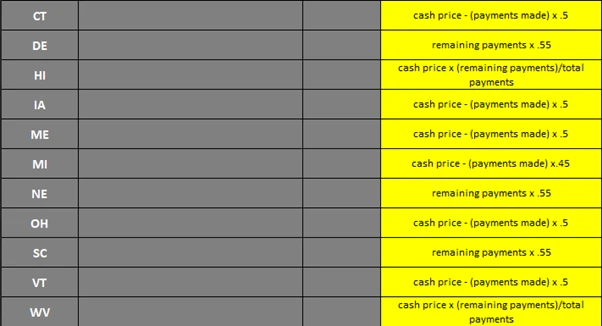
All other states get 25% off.

DO NOT CHANGE ADDRESS ON FILE

If a customer reaches out to us to make changes to their lease address post-creation, kindly ask for the new address they wish to use and then forward this request to Antonio for further assistance.

Also advise the customer that a Tire Agent representative will reach out to them.

Addresses on NEW Leases should not be changed. However, if the product is delivered and the customer has already started to make payments on the account then the address can be updated by an Agent otherwise it MUST be escalated.


Common Call Center Questions/Answers


Question: Why does it say my payout is more than price I paid for?

Answer: This is for the full-term price if you were to pay each week of your term.


Question: What is the return policy for tires I have never installed?

Answer: Contact Tire Agent and request tires to be sent back. Tire Agent will send return labels and customer would be responsible to pay for the return.  Once return has been confirmed with no issues to the product, account will be de-activated.


Question: I can’t log into my account. I tried resetting my password.

Answer: Try restarting phone or computer. Agent can create a temporary password for customer.


Question: I’m stuck at the DocuSign process, what do I do?

Answer: Common problem is the type of credit card the customer is using.  Debit linked to a bank account is the only card accepted during the application process.  Can be changed once application has been fully funded.


Question: How do I set up my account to bi-weekly, semi-monthly or monthly?

Answer: For now, that can only be done by us, how would you like us to set up your account going forward?


Question: Can I pay with a check or money order?

Answer: Right now, only a credit/card can be accepted with Own.Lease.  Your account will automatically be setup with auto-pay base on how your account is set up whether weekly, bi-weekly, semi-monthly or monthly.


Question: Why is my card being declined?

Answer: In most cases, your bank is blocking us as it’s not recognizing our new business.  Please call your bank and let them know that this will be a reoccurring transaction and remove the block.


Question: I picked Monthly/Biweekly option, why are you charging me twice?

Answer: All accounts are set for weekly payments when set up. We can assist with changing your cycle due if needed.


Question: Why does my account balance higher than the purchase when I log in to pay or get emails?

Answer: Those forms only show full buy out.  These are all payments for full term. They would refer to lease agreement or ask us for details. The system unfortunately can’t display this information. Doe’s not display Early buyout or 101-day option. 


Question: Where are my tires?

Answer: Tire Agent should have sent you a FedEx tracking number showing your delivery date/time.  If you haven’t received your tracking number, please call Tire Agent at 833-847-3463.


Question: How do I login to my account?

Answer: You should’ve received a Welcome Letter (check spam) with instructions on how to set up your account.  If not, go to https:/own.lease/ and login using your password used to open your account. If you’ve forgotten your password, click on the “forgot password”.


Question: Can I change my pay cycle online?

Answer: Unfortunately, at this point, no. But this something that we would happy to assist you with.


Question: Where do I make my payments online?

Answer: Go to https://own.lease/ and login, then click on “lease to make payment on” and then “make payment”.


Question: I filed for bankruptcy.  Or, I’m filing for bankruptcy.

Answer: I understand, is it possible for us to get your lawyer’s information so that we may verify and adjust your account accordingly?


Question: My tires have never been delivered.

Answer: You must notify Tire Agent immediately.  Once they confirm that the product hasn’t been delivered, they will notify us for cancellation.


Question: I need some tires/rims, what do I need to do?

Answer: You will need to visit TireAgent.com, pick out your product and we’d love your business, so pick Own.Lease to fund your purchase.


Question: Tire Agent calls. Do they have an active account? 

Answer: You would need to email charles@own.lease who can assist in your questions.


Question: I do not understand why own lease is trying to pull a payment when there is not a payment due yet.  

Answer: Sorry for the inconvenience, most likely your auto-pay didn’t move to the next due date. We can help you with that today.

Introducción

Alerts are essential for staying informed about critical events in loan management.

They enhance communication and enable proactive actions.

Note: An Alert should be created on accounts where customers report Bankruptcy, Fraud and Deceased 

Step 1 – Getting Started

Log in to Loan Pro and select the customer’s account.


Step 2 – Navigating to Alerts

Go to the “Servicing” tab on the customer’s account.


Step 3 – Accessing Alerts

Within the “Servicing” tab, locate and select the “Notes/Alerts” option.

Under the loan heading, choose “Loan Alert.”


Step 4 – Creating a New Alert

Select “Empty” to create a new alert.


Step 5 – Adding Alert Details

In the provided box, type in the alert notes.

Be clear and concise in describing the purpose or context of the alert.


Step 6 – Saving the Alert

Select “Save” to store the newly created alert.


Note: An Alert should be created on accounts where customers report Bankruptcy, Fraud and Deceased 

Introducción

A promise allows you to record a commitment from a customer to make a payment on a specified date.


Step 1: Getting Started

Log in to Loan Pro and select the customer’s account.


Step 2: Navigating to Promises

Go to the “Servicing” tab on the customer’s account.


Step 3: Accessing Promises

Within the “Servicing” tab, locate and select the “Promises” option.


Step 4: Adding a Promise

Click on the “Add” button to initiate the promise creation process.


Step 5: Setting Promise Details

Subject: Always set the subject as “Promise to Pay” or use “P2P” for short.

Type: Ensure the type is selected as “Insurance.”

Due Date: Specify the date on which the customer will be making the payment.


Step 6: Adding Notes

Add clear and brief notes to the notation section to provide additional context or details related to the promise.


Step 7: Review and Confirmation

Double-check all the details entered to ensure accuracy.

If everything is correct, proceed to the next step.


Step 8: Saving the Promise

Click on “Save” to save the promise to the customer’s account.


Conclusion

Creating promises in Loan Pro is a simple and essential step in managing customer payments.

This process helps maintain clear communication and record-keeping for both you and the customer.


Introducción

Adjusting due dates ensures flexibility for customers and aligns payments with their financial circumstances.


Step 1 – Accessing Account Setup

Start by selecting the customer’s account.


Step 2 – Navigating to Setup Tools

Go to “Account Setups” and select “Setup Tools” from the dropdown.


Step 3 – Accessing Change Due Date

Click on the three bars on the left side to reveal the menu.

Select “Change Due Date” from the dropdown.


Step 4 – Adding a Due Date Change

Click “Add” on the left side to initiate the due date change.


Step 5 – Selecting Current Due Date

In the due date change section, choose the current due date.


Step 6 – Choosing New Due Date

In the new due date section, select the date the customer wants the bill to be due.


Step 7 – Charge Fee

Ensure “Charge Fee” is set to “NO” to avoid any additional charges for the due date change.


Step 8 – Saving Changes

Click “Save” to apply the new due date.


Important Note

Due dates should align with the customer’s frequency request or salary date. 

The new due date should match the payment frequency cycle or any customer-requested cycle change.

Introducción

When to Change Online Password?

If a customer attempts to use the forget password option and is unable to reset password, you may create a temporary password.


Step 1 – Accessing Customer Account

Begin by pulling up the customer’s account in Loan Pro.


Step 2 – Navigating to Customer Information

Click on “Customer” and select the customer’s name.


Step 3 – Editing Contact & Personal Information

Within the customer details, locate “Contact & Personal Information” and click “Edit.”


Step 4 – Web Access Information

Select “Web Access Information” (#4) to proceed.


Step 5 – Confirming Email and Creating Temporary Password

Confirm the customer’s email address as the username.

In the password box, create a temporary password. For this example, use “Ownlease2023.”


Step 6 – Saving Changes

Save the changes made to the web access information.


Step 7: Customer Communication

Inform the customer about the password change. (Send info in a text or email)

Encourage the customer to log in online using the provided temporary password.


Step 8 – Customer Login and Password Reset

Ask the customer to log in online using the temporary password and reset their password to a more secure and personalized one.

Preguntas Frecuentes

For Your Search

Cuenta de Fraude

Gather detailed information by asking probing questions about why the customer believes this is a fraudulent account. Confirm customers Email

Ver Artículo

Escalations that should be sent to the Manager Escalation Queue

Frequency Change – Bi-Weekly/ Semi-Monthly/Monthly Payment Request Refund – This escalation should be vetted by Thia Dixon Cancel Lease Return

Ver Artículo

Escalation Templates

Notes Template Contact Type: Inbound / Outbound Reason for Interaction: Action Taken/Resolution: Escalation Completed: Yes / NA Agent Signature:  

Ver Artículo

Early Payoff Discount by State

All other states get 25% off.

Ver Artículo

Customer request to Change Address on file

DO NOT CHANGE ADDRESS ON FILE If a customer reaches out to us to make changes to their lease address

Ver Artículo

Customer FAQs

Common Call Center Questions/Answers   Question: Why does it say my payout is more than price I paid for? Answer:

Ver Artículo

Creating Alerts in Loan Pro

Introduction Alerts are essential for staying informed about critical events in loan management. They enhance communication and enable proactive actions.

Ver Artículo

Creating a Promise in Loan Pro

Introduction A promise allows you to record a commitment from a customer to make a payment on a specified date.

Ver Artículo

Changing Due Date in Loan Pro

Introduction Adjusting due dates ensures flexibility for customers and aligns payments with their financial circumstances.   Step 1 – Accessing

Ver Artículo

Changing Customer Online Password in Loan Pro

Introduction When to Change Online Password? If a customer attempts to use the forget password option and is unable to

Ver Artículo

Scroll al inicio